 Kimber
Android TV & Google TV
IPTV player for Android TV and Google TV
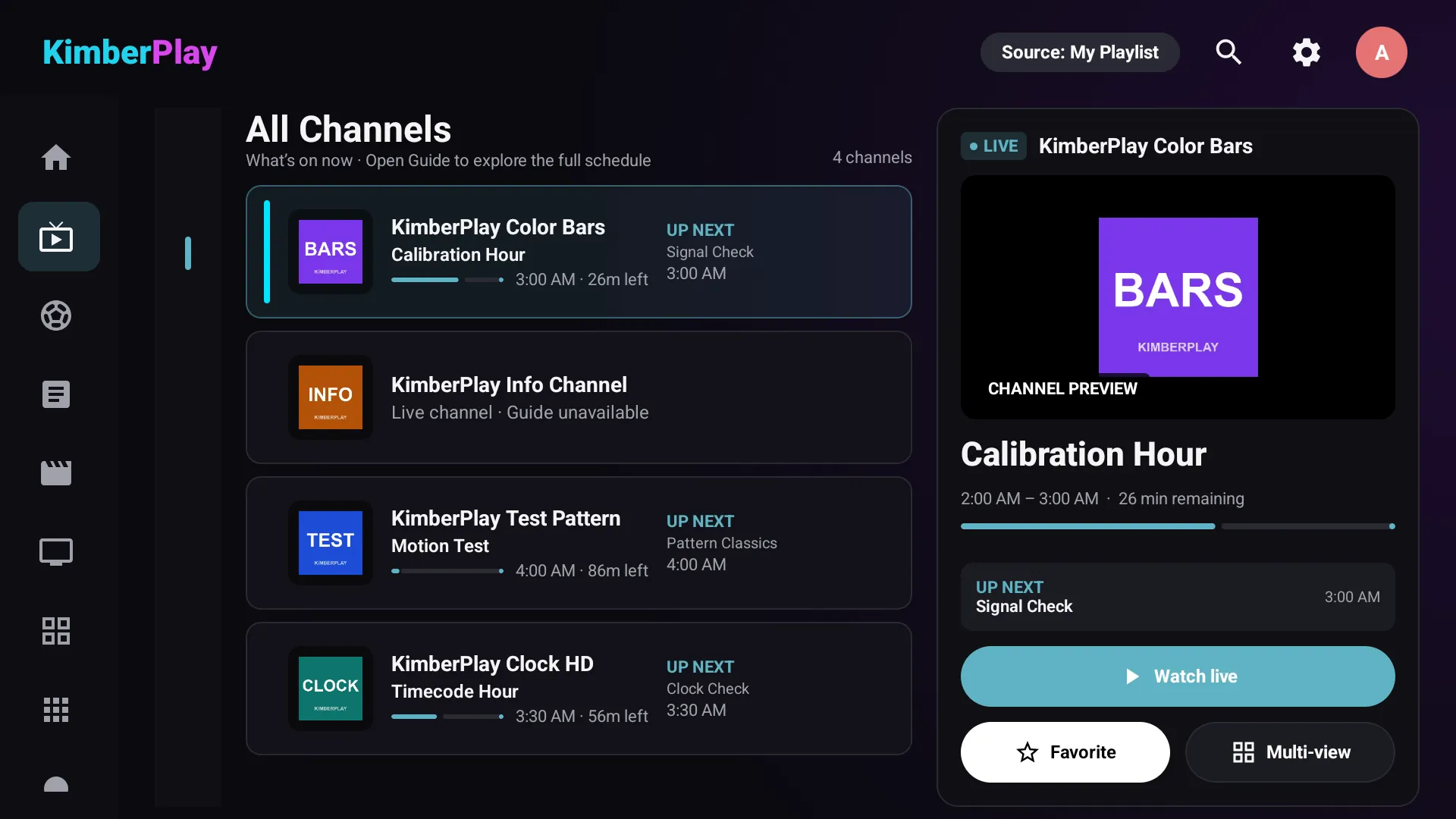
KimberPlay is a free IPTV player for Android TV and Google TV that turns the M3U link, Xtream login or Stalker portal you already have into live TV with a full guide, movies and series. It runs on Android 5.0 or newer, is driven entirely by the TV remote, and installs today from kimberplay.com/apk. It is a player only: no channels are included, and you use sources you are authorised to access.
Pick your install route
| Your device | How KimberPlay installs | Where to go |
|---|---|---|
| Google TV or Android TV (box, stick or built into the TV) | Direct APK | Steps below |
| Amazon Fire TV running Fire OS | Direct APK through Downloader | Firestick guide |
| Fire TV Stick 4K Select and other Vega OS Fire TVs | Not available yet | Vega OS cannot install APKs; a version is planned |
| Google Play Store | Not available yet | Being prepared; not live as of October 2026 |
| No compatible TV device | Web player or desktop app | Devices and the web player |
Chromecast with Google TV, Google TV Streamer or Nvidia Shield? The Google TV and Shield guide has the menu path for each device.
Install on Google TV or Android TV
Step 1 — Turn on developer options
On Google TV: Settings → System → About, then select Android TV OS build seven times until the TV says you are a developer. Older Android TV menus put the same switch under Settings → Device Preferences → About → Build. This only unlocks the permission prompt used in Step 3; it does not change anything else.
Step 2 — Install Downloader from Google Play
Search Google Play on the TV for Downloader (by AFTVnews). If the search does not find it, include “AFTVnews” in the search.
Step 3 — Download KimberPlay
Open Downloader and enter kimberplay.com/apk or enter the code 2256818. When Android asks whether Downloader may install apps, allow it (on older Android TV this is Settings → Apps → Security & restrictions → Unknown sources). Choose Install, then Open. Each build is signed and its SHA-256 checksum is published next to the download.
Google Play Protect may stop the install with “Harmful app blocked”. KimberPlay contains no malware; here is why it happens and the safe way through. Keep Play Protect on.
If Google TV says “Harmful app blocked”
KimberPlay contains no malware. Google Play Protect can block apps installed from outside Google Play that it doesn’t recognise yet, and KimberPlay installs from kimberplay.com rather than Google Play. So the warning can appear on Google TV and Android TV. Fire TV devices don’t have Play Protect, so it does not happen there.
The safest way through:
- Make sure the file came from kimberplay.com/apk. If you want to be sure it is the file we published, compare its SHA-256 checksum with the one shown next to the download button.
- If the warning offers Install anyway (on some TVs it is under More details), you can choose it. It applies to this one install; Play Protect stays on and keeps checking everything else.
- If Play Protect offers to scan or send the app for scanning, you can let it.
- Keep Play Protect on. If the warning has no Install anyway choice, use the web player in a browser or the Windows app for now, with the same Plus key, or write to support@kimberplay.com and we’ll help.
Already have KimberPlay on this TV?
This version is signed with a new key, so Android can’t install it over a copy you already have, and the install will fail. Your current version keeps working, so there is no rush.
To move to this version, uninstall KimberPlay first, then install it. Uninstalling removes the app’s data, but the safety copy KimberPlay keeps in Downloads/KimberPlay stays on the TV.
When you open the new version, it offers to restore that copy. On Android 11 and newer, press Allow file access, pick KimberPlay in the list that opens, press OK on it once, and go back. Android TV can keep showing “Not allowed” under KimberPlay after that; the restore still works. Then press Restore. Your playlists and favourites come back.
If the app closed before you restored, or you chose Start fresh, open Settings › Backup & Restore and press Restore from safety backup. On Android 11 and newer it asks for the same file access, and the restore carries on by itself when you come back. If nothing happens, press Restore from safety backup again and press KimberPlay once more in the list.
Since version 1.15.0 the safety copy leaves out passwords and your Plus key. Have your provider login or full playlist link ready, and your Plus key too: you can get it re-sent at kimberplay.com/billing. If no safety copy is found, add your playlist again.
A server on your own network, such as an HDHomeRun tuner, needs approving again after the restore, because that approval isn’t in the safety copy either.
These steps were checked on Android TV.
Step 4 — Add your source
Enter the M3U link, Xtream server and login, or Stalker portal your provider gave you, choose what to import (live, movies, series), and press Build My Library. Add a separate XMLTV guide link in Settings if your M3U playlist does not carry one.
What the TV app does on Android TV
Android TV and Fire TV run the same KimberPlay app, which is the most complete version of the player. Compared with the Windows, Linux and web players:
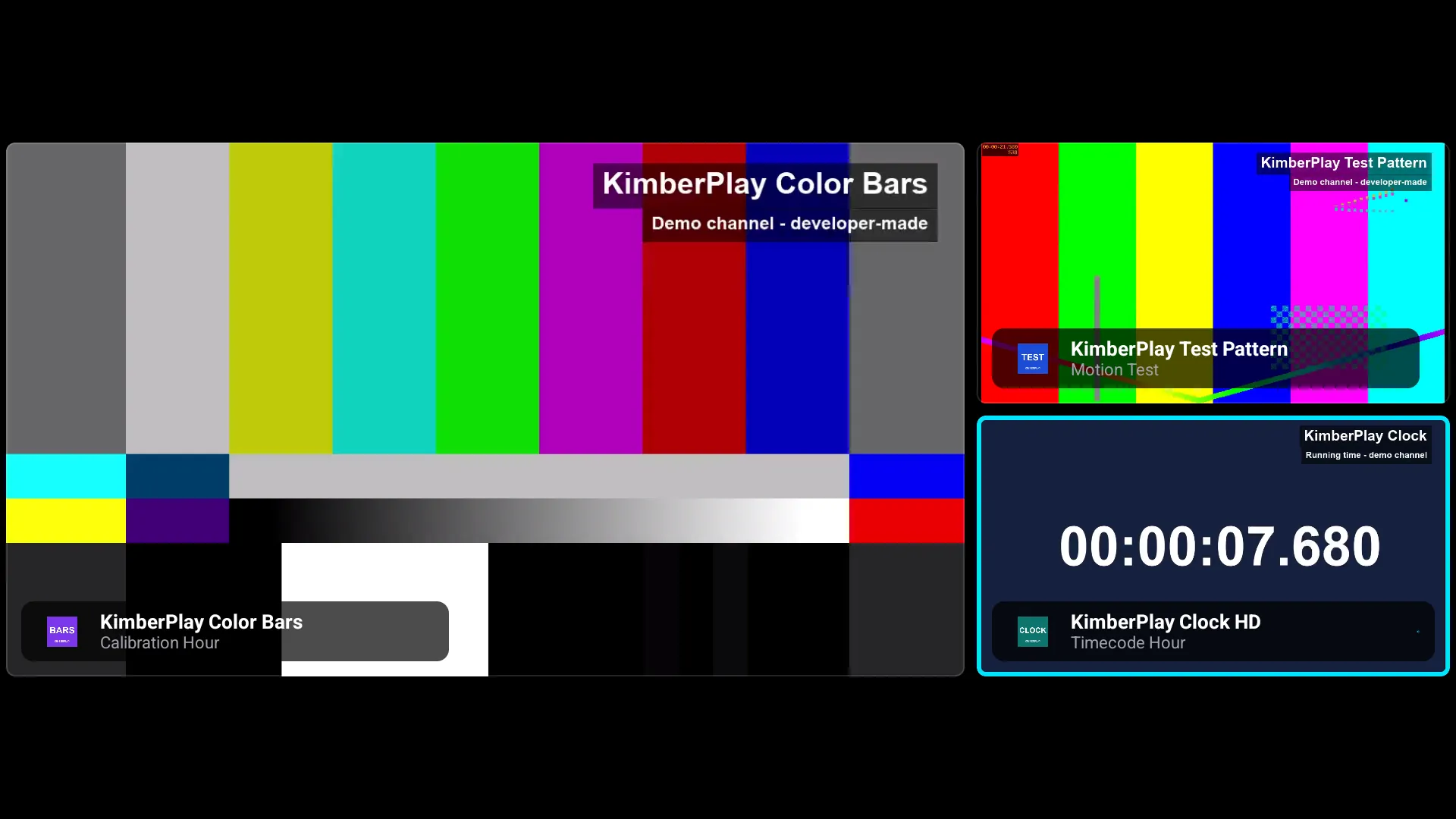
- Multi-view (Plus): up to four live channels on one screen; the D-pad picks which one you hear. How many streams play smoothly depends on the device and on your source’s connection limit.
- DVR recording (Plus): record a programme from the guide, or every episode with a series rule.
- Catch-up (Plus): replay past programmes and resume paused live TV on channels where your provider offers an archive.
- Phone remote and Cloud Sync (Plus): control the TV from a phone browser; optionally sync playlists, favourites and progress between TV devices with a paid key (off until you enable it).
- Match frame rate: Cinema mode switches the TV’s refresh rate to the video’s where the device supports it.
The full per-platform list is the feature matrix; how the guide handles missing data is explained in the EPG troubleshooting guide.
Quick answers
What is a good IPTV player for Android TV and Google TV?
A good Android TV IPTV player plays the M3U, Xtream or Stalker source you already have, fills a full program guide, is fully usable with the TV remote, and keeps your library through updates. KimberPlay is a free IPTV player for Android TV and Google TV (Android 5.0 or newer) that does this, with recording, catch-up and multi-view in Plus. It includes no channels; your content comes from your own provider.
Is KimberPlay on Google Play?
Not yet. A Google Play release for Android TV and Google TV is being prepared but is not available as of October 2026. Today the app installs from kimberplay.com/apk, a signed APK with a published checksum. This answer will change when the Play listing is live.
Which Android TV devices does KimberPlay support?
Android TV and Google TV devices running Android 5.0 (API 21) or newer with a standard remote: streaming boxes, sticks and TVs with Android TV or Google TV built in. Fire TV devices running Fire OS use the same app. The verified-device table at kimberplay.com/devices lists the hardware that has been through a recorded test pass; other Android TV devices should work but are not called verified until they have.
Do I need a Fire TV Stick if my TV already runs Google TV?
No. Install KimberPlay on the TV itself. A stick only helps if the TV's own software is not Android TV or Google TV, for example a Samsung (Tizen) or LG (webOS) TV.
Choosing between players? See the dated comparison of popular IPTV players or the KimberPlay vs TiviMate page. Pricing, refunds and privacy are covered in the FAQ.