 Kimber
Android TV
M3U player for Android TV: paste the link, keep the remote
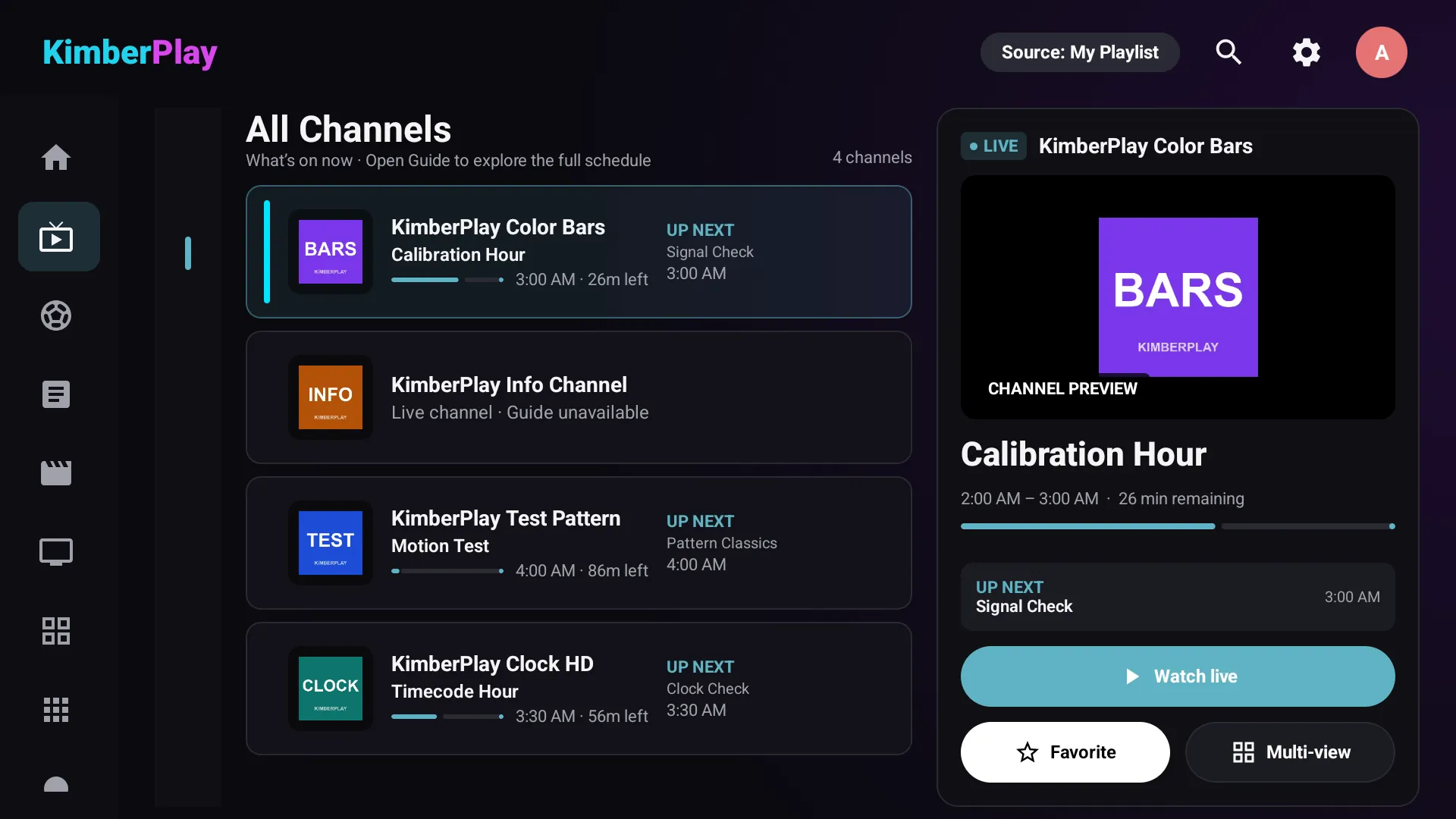
An M3U playlist is a text list your provider already gave you — channel names, groups, logos, and a stream address per line, often with an XMLTV guide attached as url-tvg. KimberPlay on Android TV and Google TV reads that link and builds the channel list, the guide, and the movie and series rows from it.
What you paste
You need the M3U URL itself, not a converted file and not an account KimberPlay sells. Paste it on the first screen and press Build My Library. The import groups live channels, separates movies and series, and attaches the program guide when the playlist or its XMLTV link supplies one. A large playlist is the case the importer was built for; playback still depends on the device and the source.
Install on Android TV or Google TV
- The app targets Android 5.0 (API 21) and newer, with a standard remote.
- Download the signed APK from kimberplay.com/apk and confirm the SHA-256 published next to the download.
- Open KimberPlay, choose M3U, paste the URL, and let the library finish before you judge the guide.
Fire TV uses the same APK through a different install. The Firestick install guide is that walkthrough; the M3U player for Firestick is the playlist side of it.
Already have KimberPlay on this TV?
This version is signed with a new key, so Android can’t install it over a copy you already have, and the install will fail. Your current version keeps working, so there is no rush.
To move to this version, uninstall KimberPlay first, then install it. Uninstalling removes the app’s data, but the safety copy KimberPlay keeps in Downloads/KimberPlay stays on the TV.
When you open the new version, it offers to restore that copy. On Android 11 and newer, press Allow file access, pick KimberPlay in the list that opens, press OK on it once, and go back. Android TV can keep showing “Not allowed” under KimberPlay after that; the restore still works. Then press Restore. Your playlists and favourites come back.
If the app closed before you restored, or you chose Start fresh, open Settings › Backup & Restore and press Restore from safety backup. On Android 11 and newer it asks for the same file access, and the restore carries on by itself when you come back. If nothing happens, press Restore from safety backup again and press KimberPlay once more in the list.
Since version 1.15.0 the safety copy leaves out passwords and your Plus key. Have your provider login or full playlist link ready, and your Plus key too: you can get it re-sent at kimberplay.com/billing. If no safety copy is found, add your playlist again.
A server on your own network, such as an HDHomeRun tuner, needs approving again after the restore, because that approval isn’t in the safety copy either.
These steps were checked on Android TV.
What the television does with the list
- Groups become a channel list with what’s on now and next, favorites, and recently watched.
- The guide is a seven-day timeline when your source provides EPG data. Channels with a broken guide id are matched by name, and an ambiguous name stays blank instead of showing the wrong schedule.
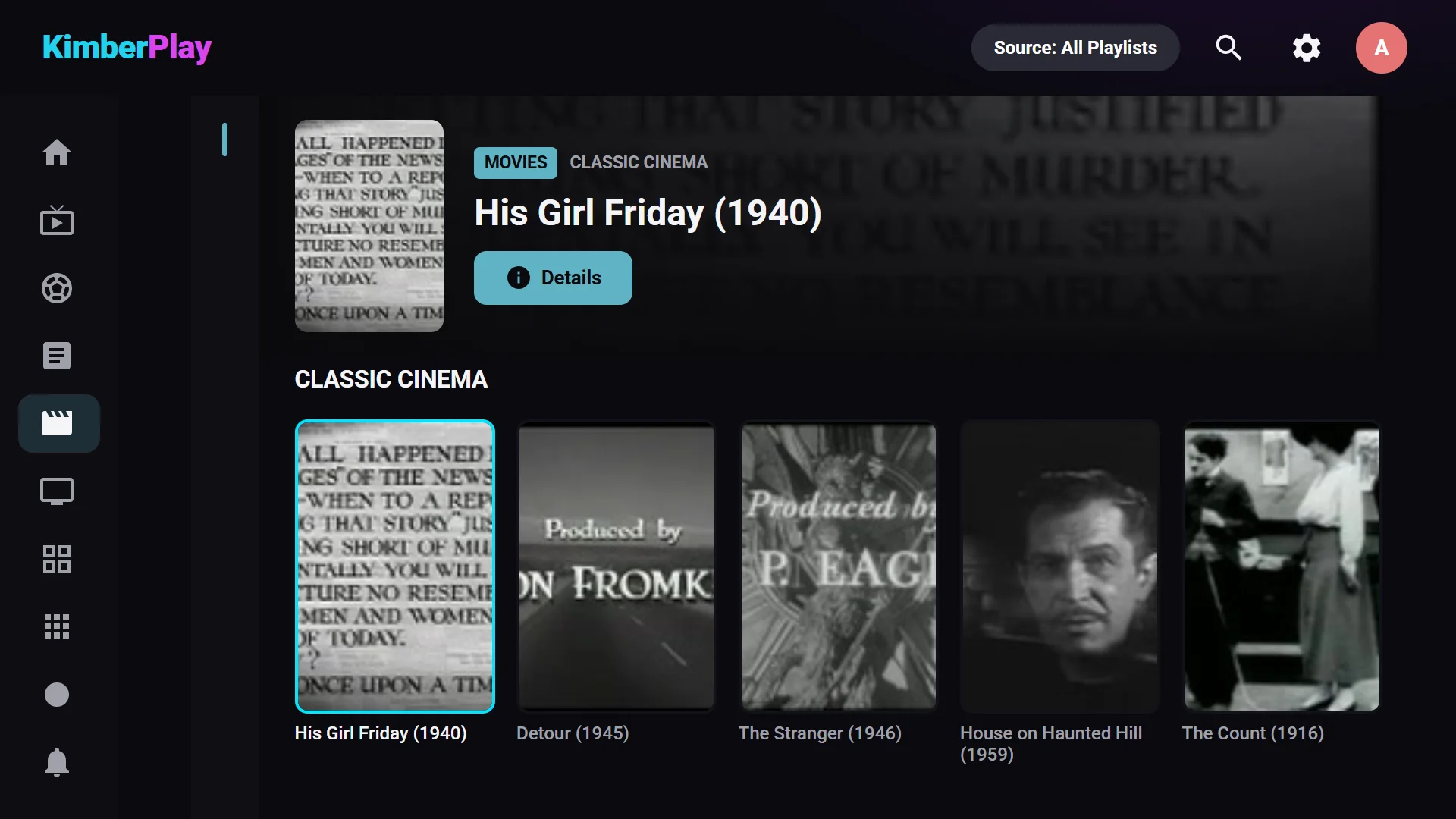
- Movies and series from the playlist get posters, seasons, and continue-watching where the file carries that detail.
- Free includes one playlist, playback, the guide, and search. Plus adds more playlists, recording, catch-up where your provider offers it, the Sports and News hubs, multi-view, cloud sync, and the phone remote. Multi-view capacity depends on the device and how many connections your source allows.
No content included
KimberPlay provides no content or channels. It does not sell, host, or recommend playlists. Use a playlist you are authorized to access.
If the login you were given is a server, username, and password, use the Xtream Codes player for Android TV instead. The difference between the two formats is explained in M3U vs Xtream Codes. Empty guide rows are covered in the guide troubleshooting page. Phones and tablets are not a supported app; a phone browser can open the web player when the source allows it.